
Station Settings and Registering
This dialog is presented when you run MacLoggerDX unregistered, or select Settings... from the MacLoggerDX menu and select the Station tab.
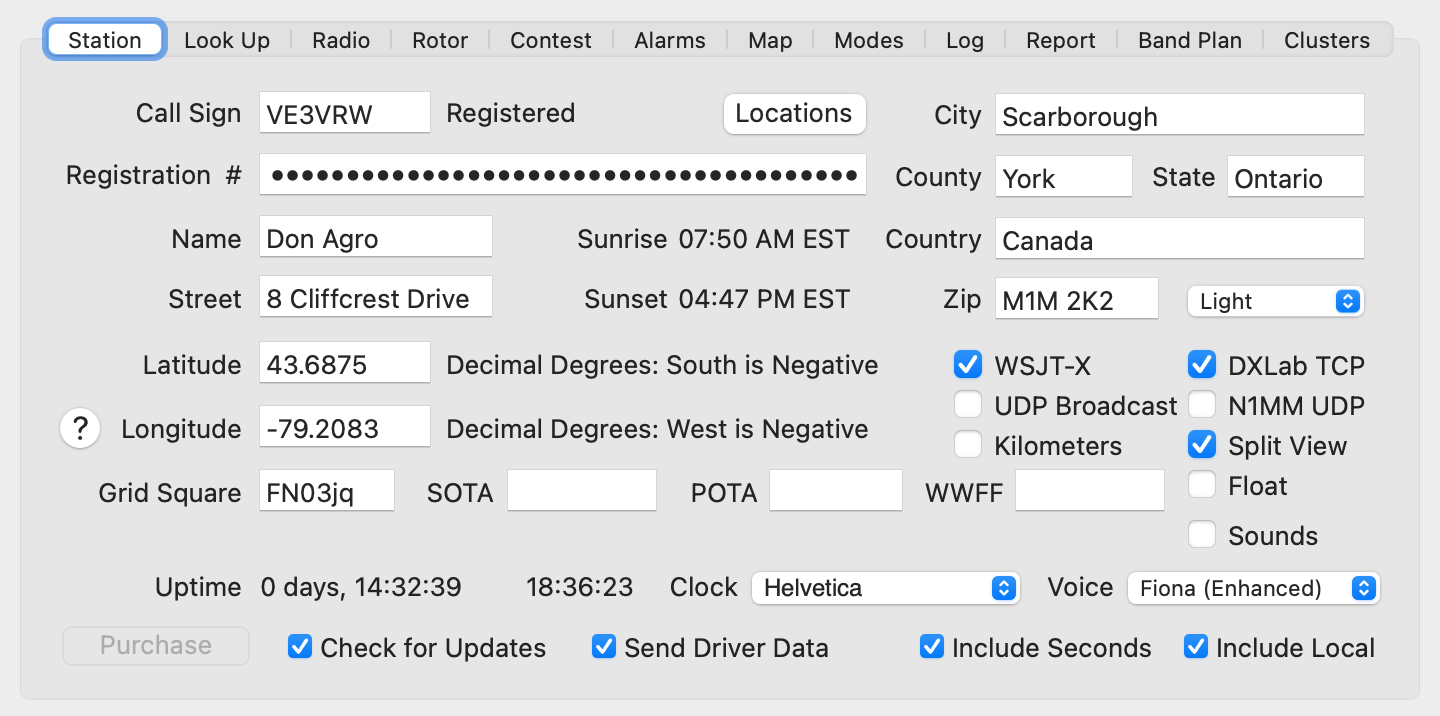
Enter your Call Sign and Registration number in the Call Sign and Registration Number boxes, then press return or tab out of the field. Unregistered will change to Registered. The Call Sign you enter here is stored in each QSO you log in the My Call field and will be exported in the ADIF OPERATOR tag.
Once registered the Purchase button will be
disabled otherwise it will direct your web browser to the MacLoggerDX
page where you can purchase a MacLoggerDX registration number
with the PayPal or Stripe buttons.
Multiple Call Signs
If you operate with more than one on-air call sign, portable
prefixes/suffixes are supported - if your registered call sign
is W1AW then W1AW/VE3, VE3/W1AW, W1AW/P and W1AW-9 will also
work. The base call (W1AW) will be used to validate
registration. If you change your call sign or add a new call
please email us for a new registration number. There is no
charge for additional registration numbers as long as the call
signs all belong to, and are used exclusively on-air by you.
If
you are operating under a special event call sign that you don't
own, use your registered call sign and then, with the Log
menu Change Selected Log Entries command, bulk edit the
My Call log field before uploading your QSOs.
You
can only use one call sign and registration number pair at a
time in the same macOS account, but you can use multiple
accounts all sharing the same log file. If you change your call
sign and registration number in MacLoggerDX you will also have
to notify the ARRL and make some changes
in tqsl.
When
you log a QSO, your Station settings Call Sign is stored in
the QSO My Call field. When you upload a QSO to LoTW the
My Call field is exported as the ADIF OPERATOR
tag and it must match a LoTW callsign certificate in TQSL.
Locations Editor
The Locations editor (only needed if you use more
than one location or call sign) will allow you to
maintain an unlimited list of locations and switch between them.
Each location contains a call sign, registration number, grid square,
LoTW Location name, eQSL Username, eQSL Nickname, QRZ Logbook Upload API Key
and HRDLOG upload code.
You can add, delete edit or apply any of the saved locations
which are maintained across sessions.
When you Apply a Location, it won’t change previously logged QSOs, and is applied to subsequent logging.
Station Settings
Enter your Latitude, Longitude
in decimal degrees or Grid Square information
in the text edit boxes, alternately you can use the Location
lookup ? button if Location Services are
enabled on your Mac.
This will be used in determining the distance
and bearing from your station of all look ups. You can use
a GPS to determine your precise Latitude and Longitude, or look
it up on the Internet. Remember to enter the decimal numbers
using your local decimal separator.
The Locations
button will start the Locations editor.
The rest of the Station Information (Name, Street, etc.) is used in the QSL Panel.
The Sounds check box will enable/disable MacLoggerDX sound notifications.
The UDP Broadcast check box will enable/disable MacLoggerDX UDP broadcasts.
The Kilometers check box lets you choose between miles and kilometers for display of distance information.
The Light/Dark/System popup enables a light mode windows appearance, a dark windows appearance for low light situations or will follow the system setting.
The SOTA text edit box lets you set your SOTA
Reference for your station (this is exported as the MY_SOTA_REF
ADIF tag as well as MY_SIG, MY_SIG_INFO tags).
The POTA text edit box lets you set your POTA Reference for your station (this is exported as the MY_POTA_REF ADIF tag as well as MY_SIG, MY_SIG_INFO tags).
The WWFF text edit box lets you set your WWFF Reference for your station (this is exported as the MY_WWFF_REF ADIF tag as well as MY_SIG, MY_SIG_INFO tags).
The UTC Clock Font popup selects the Font for the UTC Clock while the Include Seconds check box includes seconds in the UTC time display window which is activated under the MacLoggerDX Menu. The time display window floats above other windows and is resizeable.
The Voice popup selects the Speech voice.
The DXCC text displays your DXCC ID and Country based on your Call Sign
The Check for Updates check box will check for new full release versions of MacLoggerDX as well as new internal database updates each time you run the program. If there are a number of new internal database files available for download this can slow the startup process by a half minute or so depending on the speed of your internet connection.
The Send Driver Data check box will send driver data to help us maintain them. No identifying data is ever shared with 3rd parties.
UTC Time
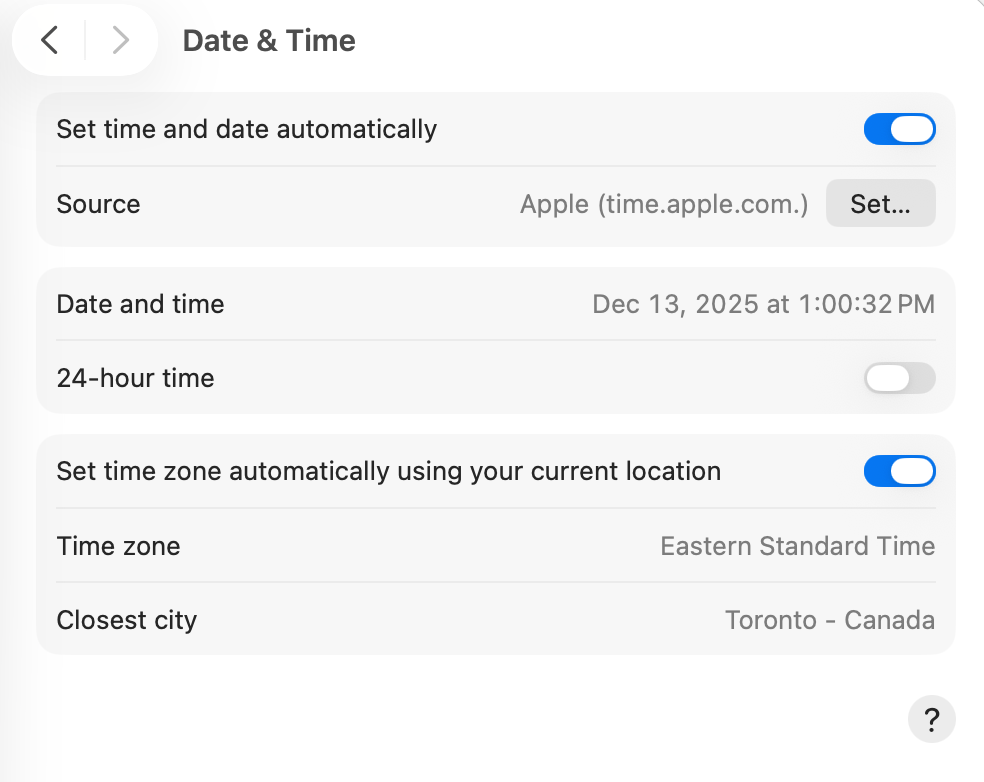
MacLoggerdX needs to know the correct UTC Time to function properly. Make sure you have your System Settings / General / Date & Time / Time Zone set correctly, and the Set time zone automatically using your current location turned on.
When you log a QSO:
1) My Call comes from your current Station settings call
sign and is exported in ADIF as OPERATOR.
2) My Grid comes from your Station settings grid square
and is exported as ADIF MY_GRIDSQUARE.
3) The LoTW Location name comes from Look Up / LoTW
Location setting and is sent through the tqsl API.
Startup problems
If MacLoggerDX crashes on startup or won't run...
Your settings file may have been corrupted. Unexplained crashes or other odd program behaviour that are not widely reported could be due to a corrupted settings file.
Hold down the Option key when starting MacLoggerDX. Note: v6.54 and later, the Option and Command keys must be held down.
then select Reset.
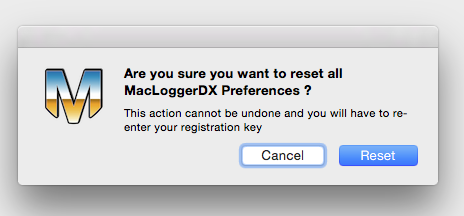
You will need to restart MacLoggerDX and enter your registration number again.
Make sure you take screen shots of your Prefs Panels to make restoring your settings easier.